
You can now connect Claude to your WunderNode account and have it build graphs for you. Not a chat window that describes what you should click — an actual connection where Claude creates the project, adds the nodes, wires them together, picks the models, runs the generations, and gives you back the image and video URLs.
The graphs land on your canvas like any other project. You open them, edit them by hand, re-run whatever you want. Claude is doing the assembly work, not replacing the tool.
I’ve been using it for a couple of weeks to turn campaign briefs into working pipelines. Here’s how to set it up and what to expect.
Connecting it
In the Claude apps (claude.ai, desktop, mobile). Go to Settings → Connectors → Add custom connector and paste:
https://app.wundernode.com/api/mcpClick Connect. You’ll land on a WunderNode page asking you to approve access — sign in if you aren’t already, check what it’s asking for, hit Authorize. That’s it. There’s no key to copy, nothing to paste into a config file, and the connection syncs to Claude on your phone too.
In Claude Code, one line:
claude mcp add wundernode --transport http https://app.wundernode.com/api/mcpThen run /mcp inside a session and pick Authenticate for wundernode. Your browser opens the same approval page.
The approval screen lists three permissions, and it’s worth reading them rather than clicking through:
- View your graphs, results, and run status — Claude can see what’s on your canvas.
- Create and edit graphs, upload assets — Claude can build.
- Run generations on your behalf — this is the one that actually makes things happen.
Access tokens expire and refresh on their own. If you want to cut Claude off, revoke the connector on your side and every token dies with it.
What Claude can actually do
Once connected, Claude gets a set of tools that map onto the things you do on the canvas: list and create projects, read the node catalog (every model available on your account, with its settings), add and connect and configure nodes, upload an image from a URL, run a node, poll it, and collect the outputs.
In practice you don’t think about any of that. You describe what you want:
Build me a pipeline for the new espresso machine launch — a hero still, then animate it into a six-second clip. Set it up but don’t run anything yet, I want to read the prompts first.
Claude reads your catalog, decides that’s a text-to-image node feeding an image-to-video node, writes both prompts, wires them up, and gives you the project link. Thirty seconds, and nothing has been generated yet.
Here’s the same graph after running it — the still on the left, the clip on the right, both sitting on the canvas:
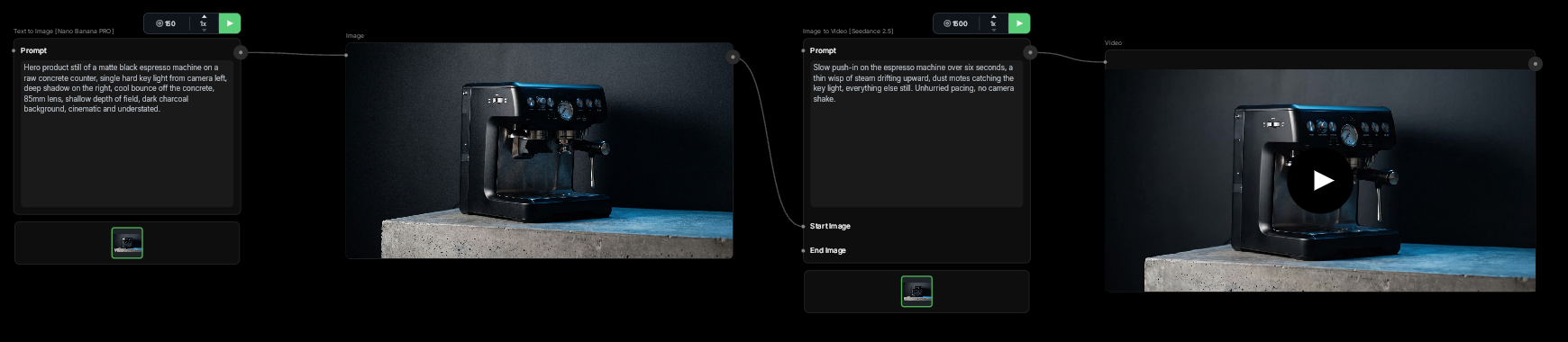
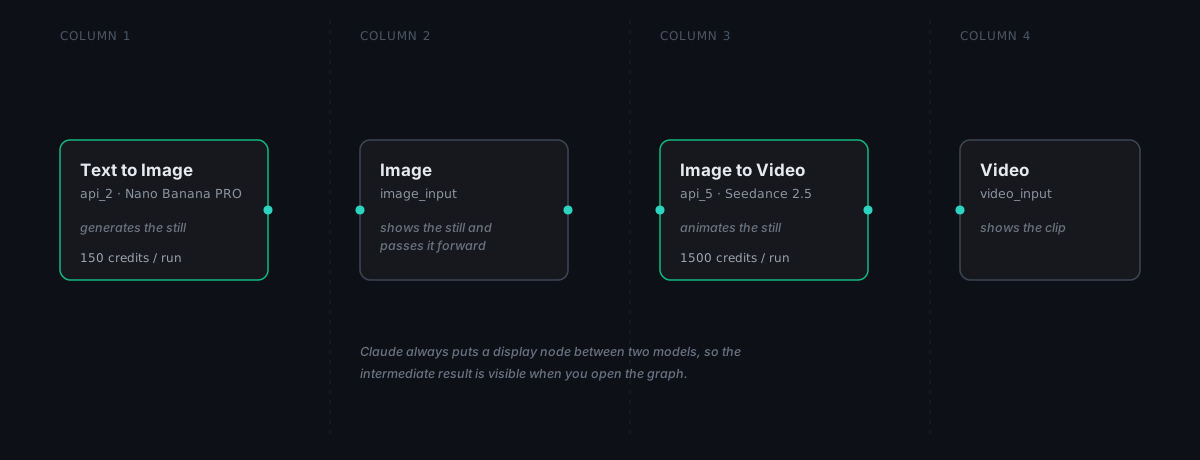
That middle display node is worth explaining. If you wire this up by hand you can connect the two models directly. Claude doesn’t — the connector always puts a display node between them, so the intermediate still is visible when you open the graph. It’s the difference between a pipeline you can inspect halfway through and one where a bad clip gives you no clue whether the still or the motion prompt was at fault.
Building and running are separate, on purpose
Assembling a graph and actually running it are two different acts, and the connector keeps them apart. Ask Claude to set something up and read it back to you, and nothing runs until you say so.
When you do let it run, Claude dispatches and then polls until it finishes, which for a video model means a few minutes. The result gets written back onto the node, so the image or clip is sitting on your canvas when you open it rather than only in the chat.
A few things will stop a run, all of them deliberately:
- Something upstream hasn’t run yet. A video node whose source image doesn’t exist gets refused rather than generating from nothing.
- One at a time. Non-premium accounts allow a single generation in flight, so Claude sequences them.
- Your plan doesn’t cover that model. Some need a higher tier than the account has.
- The model can’t use an input you wired up. This one’s subtle and it’s the one I’d most want you to know about.
That last case: node families share a set of inputs, but not every model supports every input. If Claude connects an image into a slot the chosen model quietly ignores, the generation runs without it and hands you something that looks nothing like what you asked for. The connection now gets refused before it dispatches, naming the input and telling you which models do support it.
The two habits that keep graphs readable
Everything in one shot. When Claude adds nodes and their connections in a single operation, the layout engine reads the connections and lays the pipeline out in clean left-to-right columns. When it adds nodes one at a time and wires them up afterwards, they pile into a single stack and nothing rearranges them later. Same graph, completely different readability.
Edits are a different node than generations. If you hand Claude a product photo and ask for the background swapped, that’s an image edit node — it modifies the picture you gave it. A text-to-image node with a reference input will hand you back a new scene that merely resembles your product. I’ve made that mistake more than once and it’s an easy one to make.
Both of these are the sort of thing you shouldn’t have to remember, which brings me to the last part.
The skill
I packaged the house rules into a Claude skill. It’s a short set of instructions that teaches Claude how to work with WunderNode properly: read the catalog before building, choose nodes by what they’re for rather than what plugs in, name the model explicitly instead of taking the default, build in one shot so the layout stays clean, run in dependency order, poll rather than block, and clean up its own mistakes instead of leaving dead branches on your canvas. It also ships recipes for the shapes that come up most — text to image, animating a still, multi-reference video, editing an existing image, and fanning out variants.
Download the WunderNode Pipelines skill
The file is a zip. For Claude Code, unzip it into ~/.claude/skills/ and start a new session. In the Claude apps, add it wherever your plan lets you upload skills. Either way it’s plain markdown — open it, disagree with it, edit it to match how your team works. That’s the point of shipping it rather than baking it in.
Current limitations
Two things it can’t do yet, both on the list to fix.
Personal projects only. Team projects sync live between collaborators, and the connector doesn’t handle that sync yet, so it refuses to write to one rather than risk clobbering someone else’s edit. If your work lives in a team workspace, this is the blocker.
No “run the whole graph” call. Claude runs nodes one at a time and waits for each to finish. That’s fine for a two-stage pipeline and tedious for a fifteen-node one. There’s a silver lining while it lasts — you can stop after the still if the still is wrong — but it should be a single call and it isn’t yet.
On the better side, the catalog is read live from your account, so whatever models you have access to are what Claude sees. When we add a model, it shows up without anything changing on your side.
If you want to see what a large graph built this way looks like, the canvas behind my last short film runs to about 120 nodes and is written up in How to Make an AI Short Film.
The cover image on this post came out of a WunderNode graph that Claude built and ran through this connector — one text-to-image node, one display node, about ninety seconds from asking to a file I could drop into this post.